

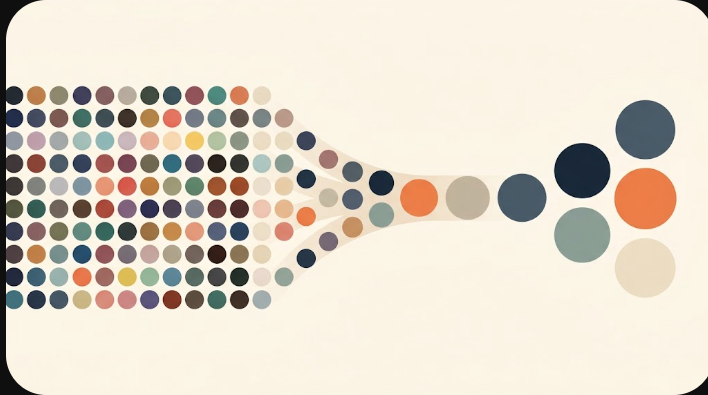
You have two levers. Before you generate, lower Max colors so the pattern is built from fewer shades to begin with. After you generate, use Simplify, which only recolors tiny 1–2 bead specks into a neighbor’s color — it never adds, deletes or moves a bead, and it never forces a target count. Protect the eyes and outlines first and they stay untouched.
Two levers, two moments
The distinction matters because people expect Simplify to hit a number, and it deliberately does not. Max colors (2–12) only constrains new generation — it shapes the palette when the grid is first built from your photo. Simplify works on the grid you already have and makes no promise about the final color count. It reduces clutter, not a tally.
| Max colors | Simplify | |
|---|---|---|
| When it acts | Before generation | On the existing grid |
| What it controls | Palette size for the new grid | Isolated 1–2 bead specks |
| Guarantees a count? | Yes, for the new grid | No |
| Touches protected cells? | Regeneration resets protection | Never |
The exact rule Simplify uses
Simplify hunts for isolated regions of a single color that are small — one cell on Light, one or two cells on Medium. For each such speck it looks at the beads touching it and recolors the speck only when both of these are true:
- at least two of its neighbors share one single color, and
- that color is close enough to the speck — within an RGB distance of 75 on Light or 110 on Medium.
If a speck is surrounded by a color very different from it — a black pupil on a pale face — the distance check fails and the speck is left alone. That is the entire point: high-contrast marks and endpoints are exactly the details you want to keep, so the rule is built to walk past them. When a swap does happen, the speck takes the closest qualifying neighbor color, not just the most common one. These thresholds are experimental working values, not a quality score, so treat the preview as the source of truth rather than the setting’s name.
Light vs Medium
Light is conservative: it only touches single stray beads and only merges very similar colors (distance 75). Medium is braver: it will also absorb two-bead specks and reach a little further for a match (distance 110). Start on Light. If the grid is still speckled with scattered pairs of stray beads and the Light preview left them, step up to Medium and look again. There is no penalty for previewing both — the grid does not change until you apply.
Protect first, simplify second
Protection is the safety rail. With the brush or the rectangle tool you mark the cells that must not change — and that includes protected empty spaces, so a gap stays a gap and cannot be filled. When Simplify runs, any region that so much as touches a protected cell is skipped entirely. Nothing you locked can shift, and the color count inside a protected area cannot be quietly changed to hit some target. Protect the eyes, the outline and any lettering first; then simplify the rest with confidence.
When to edit by hand instead
Sometimes one specific bead is wrong and no automatic rule should touch the rest. For that, edit the grid directly: the paint, fill (flood) and erase tools change single cells or connected regions, and you can nudge cells with the keyboard. There is also a manual “replace one color everywhere” action — useful when you simply do not have a shade in your kit. One caution: a manual replace-all can change protected cells, because you asked for it explicitly. If it goes too far, a single Undo restores the previous grid.
How to read the preview
Every simplification is shown before it is committed. Purple outlines mark every cell the tool would change; green marks the cells you protected. Scan the purple: if it is only landing on stray specks in flat areas, apply it. If purple is creeping onto an edge you care about, cancel, protect that edge, and preview again. Nothing is saved or exported until you apply, and Undo always returns the previous grid.
Which lever to pull
If the pattern is not made yet, set a sensible Max colors and generate — starting from fewer shades gives a cleaner base than hammering a busy grid afterwards. If the grid already looks good but is speckled with stray single beads, protect your details and run Simplify on Light, then Medium if needed. And if the real problem is that the pattern is simply too big, remember that dropping the grid width removes far more beads than removing a color does. When the palette is where you want it, print a reading chart.