

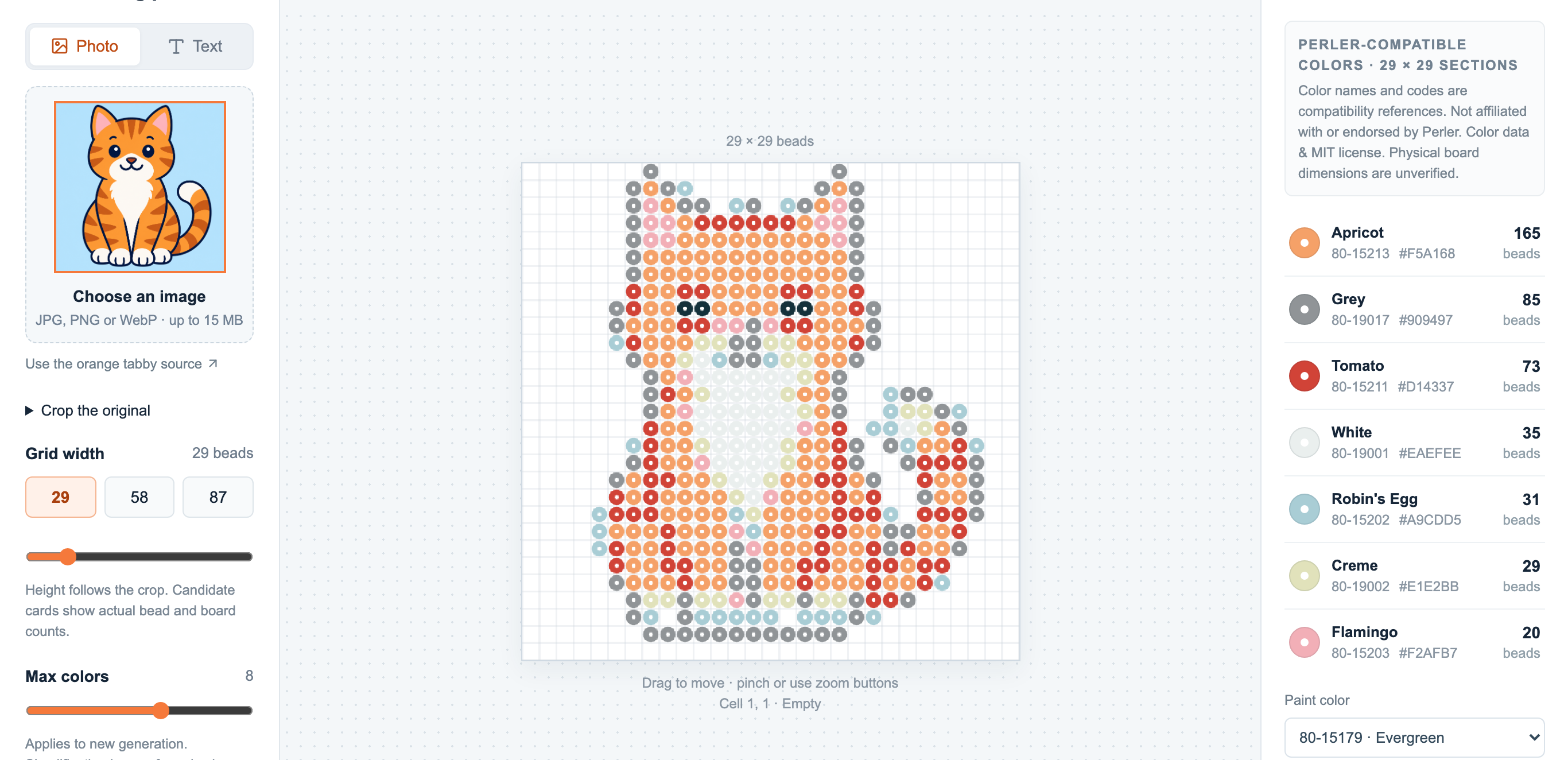
A pixel art maker lets you build a picture on a grid of squares, one flat color per cell. In the pattern maker you start from a photo, a short word, or the built-in sample, and get an editable grid right away: set how many pixels wide it is (12 to 120), cap the palette at up to 12 colors, then paint, recolor and count every cell. It is free, needs no sign-up, and runs entirely in your browser — nothing is uploaded to a server.
What this pixel art maker is — and isn’t
This is a hands-on editor, not a text-prompt generator: you don’t type “a dragon” and wait for a machine to invent one. Instead you give it a starting point you control — a photo you crop, a word up to 24 characters, or the sample cat — and it lays that down as a real, editable grid you finish yourself. Every cell maps to a color from a real Perler fuse-bead palette (103 shades), so the pixel art you make is also something you can build by hand, bead by bead. If you only want the on-screen image, the PNG export gives you exactly that.
How to make pixel art, step by step
- Pick a starting point. Upload a JPG, PNG or WebP (up to 15 MB and under 24 megapixels), switch to the Text tab to type a short word, or just use the built-in sample to see how it works.
- Set the size and colors. Choose a width — presets of 29, 58 and 87 pixels are one tap, or use the slider from 12 to 120. Cap the maximum colors anywhere from 1 to 12; fewer colors give a bolder, more classic pixel-art look.
- Create the grid. The tool samples your input into the grid and matches each cell to the nearest Perler shade, compared in a perceptual color space so the choices look right to the eye rather than merely close in raw RGB. New results appear as a preview with Apply and Discard, so they never overwrite your work until you say so.
- Make it yours. From here every cell is editable — paint, erase and refine until the picture reads the way you want.
Designing the grid
The grid is fully editable, with three ways to view it — beads, grid and symbols — and the tools that pixel work actually needs:
- Paint, erase and fill individual cells, choosing from a picker that lists every shade by code and name.
- Replace all of one color with another across the whole grid in a single step.
- Undo and redo — one stroke is one Undo — with zoom from 50% to 400% for precise cells.
- Protect cells you have already dialed in, so if you re-generate at a new size or color count, the parts you like are left alone.
- Simplify stray single beads to tidy the grid without touching protected cells.
Exporting your pixel art
When the grid looks right, export it — every download is built from the confirmed version, never an unapplied preview:
- PNG — the pixel grid as a flat image, with empty cells left transparent.
- CSV — a color list with the exact count of every shade you used.
- PDF — a printable reading chart that splits the grid into 29 × 29 sections with symbols and counts, on A4 or US Letter.
- JSON — an editable project file (grid, protected cells and, optionally, the original input) you can reopen and keep working on later.
How this differs from other pixel art makers
Most free pixel art makers hand you a blank canvas and a color wheel. This one is built for pixel art you can also make in the physical world: each square is a real bead color, the CSV tells you how many of each you need, and the PDF is a chart you can read next to a pegboard. It is a good fit for fuse-bead and cross-stitch style projects, avatars and sprite-style icons — anything that lives on a fixed grid of solid colors. Because everything runs locally, your photo never leaves your device, and the tool is free with no account.
Want to start from a picture specifically? The companion page, turn an image into pixel art, covers that flow in detail, and choosing the right size explains how width changes the look.